| ||||||||||||||||||||
|
Holiday Schedule: Closed for Memorial Day The Columbus REALTORS association headquarters will be close on Monday, May 25 in observance of Memorial Day. The association will open for normal business hours on Tuesday at 8:30am. Schedule:
| ||||||||||||||||||||
|
My Sent Email Enhancement: View Count and Timestamp for Auto-Email – May 11 On May 11, Auto E-mails will be able to see a View Count and Last Viewed Timestamp when viewing Atomatic E-mails on the My Sent E-mails page. To view the screen, go to the Contacts tab and click My Sent E-mails, then select Automatic. From here there will be two new columns of information. The View Count will show how many times a user has clicked to view their newsfeed for the automatic e-mail and the Timestamp will show the last time that newsfeed has been viewed.
| ||||||||||||||||||||
|
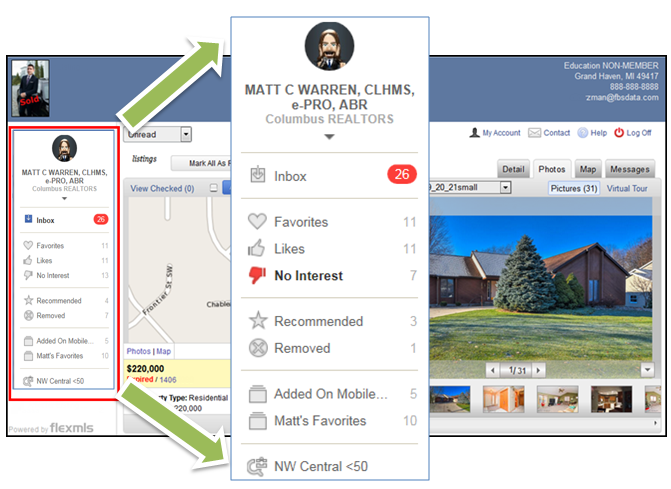
Inbox/News Feed Enhancements for Auto-Email and Portal – May 11 On May 11, FBS will release several improvements relating to the News Feed in automatic e-mails and portals. Viewing Automatic E-Mails – News Feed Menu If the user has portal access, when they click to view listings from an auto e-mail, they will have an expanded menu available underneath the News Feed and they will be able to rate listings and view their Favorites, Likes, and No Interest listing collections. Regardless of whether the user has Portal access, they will have access to your contact information by clicking on your photo at the top of the News Feed menu. Portal Changes – News Feed Although the default page that users see after logging in has been changed, they can still access the original My Account page at any time by clicking on the My Account link in the upper right corner. New Setting for News Feeds – Allow Statuses that No Longer Match Search Criteria If you want to change the default statuses allowed in Auto E-Mails and the Portal, go to the Preferences Menu and select Portal Preferences. Under the Portal Preferences section, you have access to the setting called Allow these statuses in the portal news feed for listings that no longer match.
If you would like to exclude statuses for appearing for a specific portal contact, go to the Contacts Menu and select Contact Management. Select the user, click on their Portal tab, and select Change Settings. You can then select which statuses appear for that specific contact when they view the News Feed.
| ||||||||||||||||||||
|
Realist Downtime: System Maintenance – Early Sunday Morning, May 3rd – 12am-6am CoreLogic will be performing system maintenance on the early morning of Sunday, May 3rd beginning at May 3rd 12:00 AM (midnight) through May 3rd 6:00 AM. Realist will be unavailable during this maintenance period.
| ||||||||||||||||||||
|
Announcement: Windows XP Support Ending on May 1, 2015 Please be aware that as of May 1st, 2015 the MLS Technical Support staff will no longer be able to support MLS related software issues that occur under the Windows XP operating system. Microsoft discontinued support for Windows XP in April of 2014 and as a result FBS (the company that makes Flexmls) discontinued support in late 2014. We have strived to continue supporting XP as a member benefit but it has become impossible to do so. If you have questions about this policy change please contact Bryan Dean at bdean@columbusrealtors.com. Important Support Information: Windows Vista the latest versions of Firefox, and Google Chrome
| ||||||||||||||||||||
|
Realist Downtime: System Update Monday, April 27 An update to Realist will be installed on the evening of Monday April 27th. Realist may be unavailable for several hours during that installation process.
| ||||||||||||||||||||
|
Realist Service Restored as of 4/16/15 1:00pm EDT Realist experienced an unexpected outage as of 4/16/15, 11:37am EDT that lasted until approximately 1:00pm EDT. We apologize for the inconvenience.
| ||||||||||||||||||||
|
Updated MLS Policy Violation and Data Maintenance Fee Manual now available. An updated version of the MLS Policy Violation and Data Maintenance Fee Manual has been uploaded to the MLS Reference Materials section of the Columbus REALTORS® association website. Click here link below to be taken to the website.When you visit the page, you’ll be asked to provide your License Number (Generally a 6 or 10 digit number, example of 455688 or 2015000001) and MLS Office ID (5 Digit number, example of 01455)
| ||||||||||||||||||||
|
Super Sunday Open House – Deadline April 10 Super Sunday Open House – Deadline to register tomorrow (April 10) Columbus REALTORS® Super Sunday Open House features homes throughout central Ohio and surrounding counties priced up to $150k! Don’t miss this opportunity to showcase your listing.
| ||||||||||||||||||||
|
Inbox: New Portal Navigation Options New Portal Navigation Menu on Client Portal
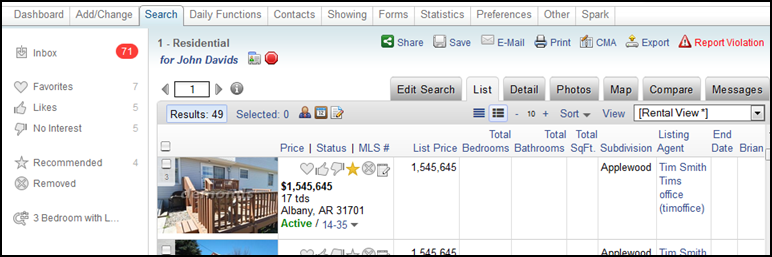
When your clients view listings in the Client Portal, the new portal navigation menu will appear along the left side of the screen providing easy access to listings they have received via auto email, listing collections, saved searches, and manually emailed listings. They will no longer have to click a menu button to access those options. Click on a menu item to see listings in that section.
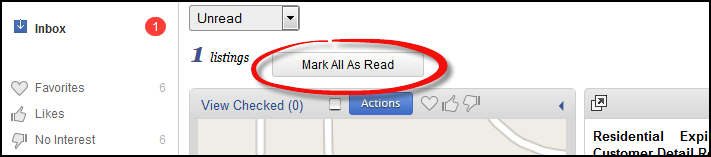
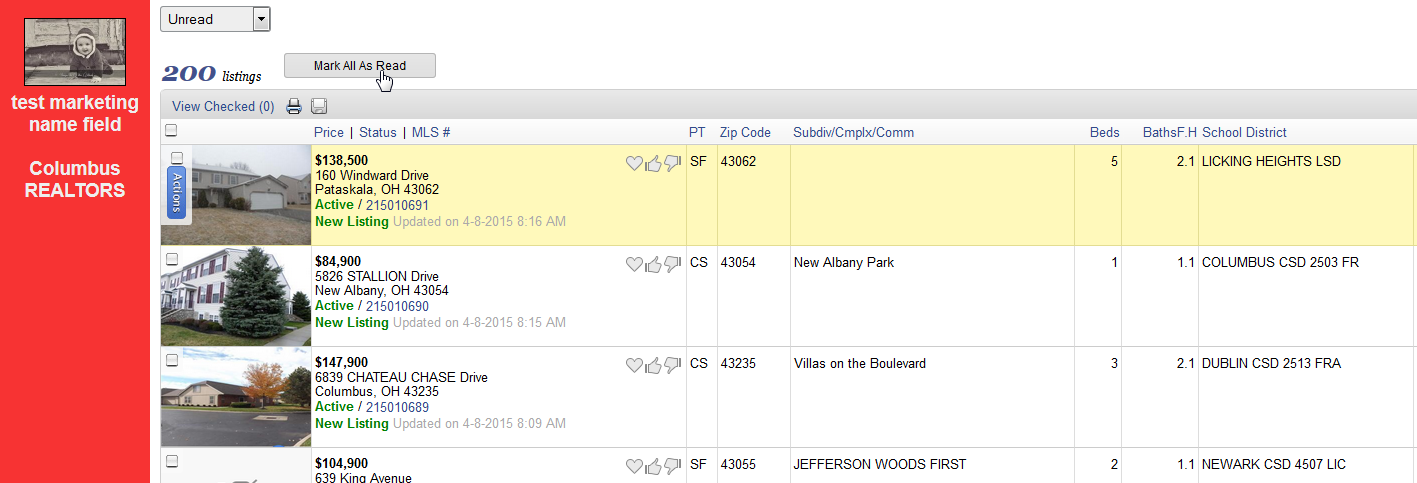
You will also see a contact’s portal menu when you work on behalf of a contact in Flexmls. This will allow you to view your contact’s emailed listings, searches, and listing collections from any search results screen. Please note, when you are working on behalf of a contact and select an item from the portal menu, the menu item will not open in a new tab. Instead, the current search results page will be replaced with the page you selected from the portal menu. Inbox If they would like to see all listings, they can select All from the Notifications drop down menu. Unread Listings become flagged as Read once the contact has clicked to view the Detail tab for the listing. The contact can also manually mark Unread Listings as read by clicking the Mark All As Read button when viewing listings in the Inbox.
You can also manually Mark All As Read for your client on their portal (assuming your client doesn’t understand how or is uncomfortable clicking “Mark All As Read” themselves). When logged in AS THE AGENT:
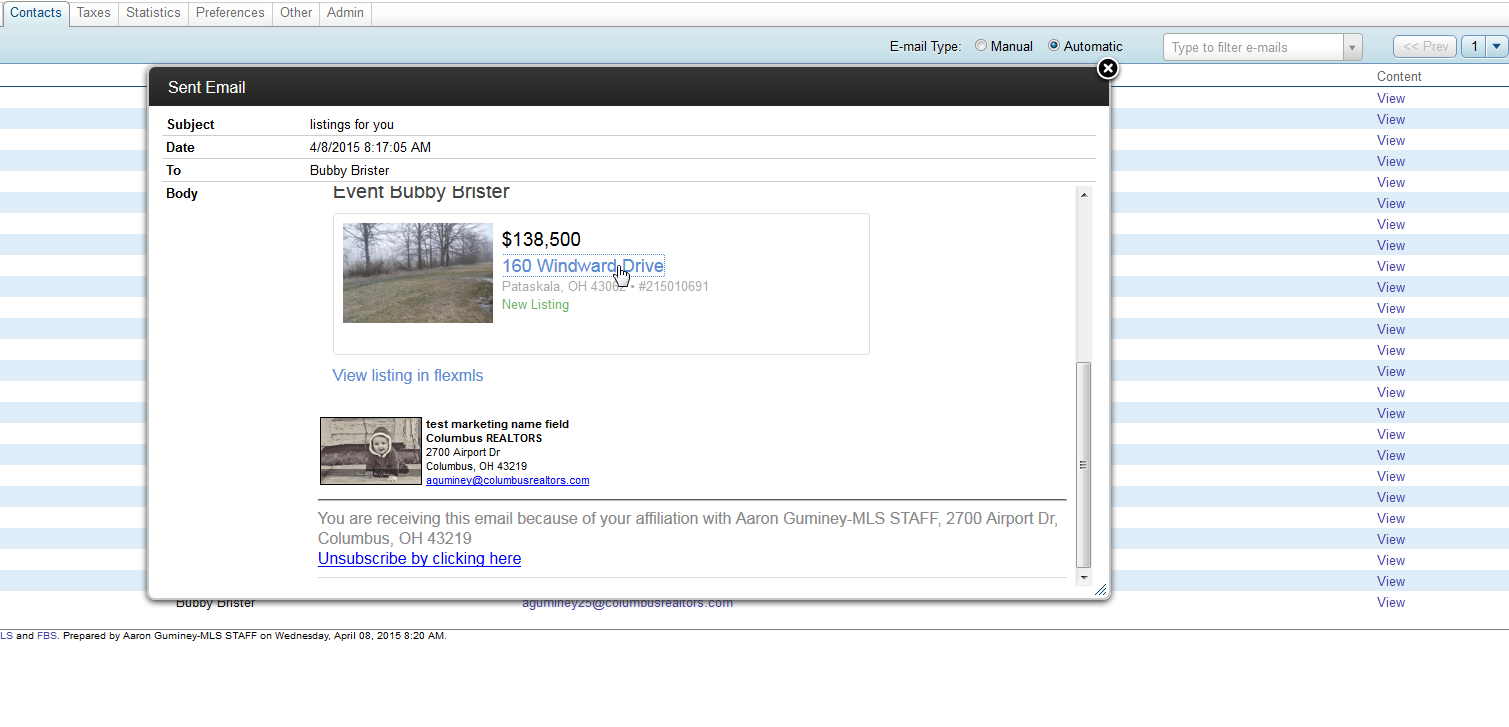
In Flexmls got to Contacts->My Sent Emails. Click the Automatic Bubble.
Under the Content column at the top right, click view. Next, click the address of one listing in the box that appears.
The listings will now display. Click Mark All As Read at the top of the list.
|