| ||||||||||||||||||||
|
Add/Edit Should Now Be Functioning Normally Changes made overnight to several fields in the MLS caused some difficulty with listing entry this morning. Most of those issues have now been resolved. Add/Edit should now function as expected. If you delayed entry of any listing, please enter that listing or listing change at this time. A recent industry-wide change (RESO) required a new format for several fields in the MLS. Buyer Broker Tenant Rep (BBTR) and Sub Agency (SA) Fields as well as Listing Agreement Type were modified. Those new formats were implemented last night. It appears that the old fields still active this morning. The Listing Service field was required when it should not have been. There was also an erroneous requirement to enter data in both fields, regardless if “yes” was selected. For a description of the field changes that prompted these issues, please read the full article on the MLS Message Board. The new format is simply 3 fields for each: BBTR and SA. Previously, BB/TR Amount and SA Amount were entered as “$3000” or “3%”. There will now be a discreet field for each. The Listing Agreement Type field was split into 2 fields. See details of the new fields formats below. New Format for Buyer Broker/Tenant Rep and Sub Agency Fields: Buy Brkr/Tenant Rep (Yes/No) Sub Agency (Yes/No) New Format for Listing Agreement Type field: Listing Agreement Type (ERS and EA)
| ||||||||||||||||||||
|
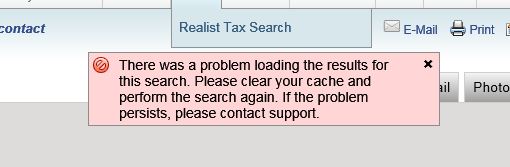
Internet Explorer 11 – Compatibility View needs to be turned OFF If you are using Internet Explorer 11 to access Flexmls, it is possible you may be receiving an error message when trying to access various sections of the system. This is likely caused by your browser having Compatibility Mode turned ON for the Flexmls system. Flexmls has not ever needed Compatibility View turned on, but in some cases, your may have accidentially set your browser to work in this mode for the website. The error you receive will be:
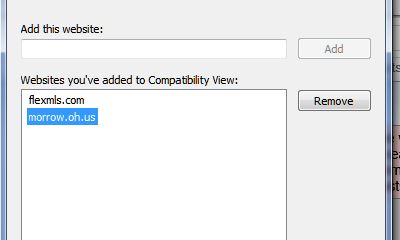
Clearing your cache will not resolve the issue. The resolve is to remove flexmls.com from your list of Compatibility View enabled sites. To do so, you can do the following:
| ||||||||||||||||||||
|
Slight Change to Subscription Frequency for “Weekly” Email Beginning Monday, November 2, email frequency for Subscription emails will change slightly. No change or action is required by the agent or client. All current auto-email subscriptions will continue to be delivered. The change will only affect “Weekly” subscriptions. ASAP and Monthly subscriptions will not be affected by this change. The “Weekly” delivery schedule will now send any matched listings once per day instead of three. The listings will typically be sent between 4-6am each day. The days of the week can still be selected when using the “Weekly” setting. This change restores the original delivery schedule that existed with the previous MLS vendor prior to February 2014. FBS did not have an “ASAP” option in early 2014. Our daily (now called “Weekly” delivery was changed from one to three times per day as a temporary fix. When ASAP delivery (every few minutes), the three times per day option was to be removed. That is exactly what will happen on November 2, 2015. Agents who wish to have the MLS immediately send new or changed listing should use the ASAP option. The previous “Weekly” three times per day option is delayed 8 hours between batches. Agents who wish to give a “once-a-day” batch delivery of all changes for the last 24 hours will now have that option with “Weekly” delivery. Summary:
| ||||||||||||||||||||
|
Flexmls system Outage on 10/9. 5:56am to 8:40a. Service has been restored. We have been aware that the Flexmls system has been down since at least 5:56 am this morning. We have heard response from our vendor, FBS, that they are aware and looking into the situation. At this time, there is no ETA of recovery. When we hear more or service is restored, we will update this message. Update 1: Response from FBS – “Outage Identified – Routine maintenance this morning has lead to a situation where the flexmls system is unavailable to all users. We’re aware of this issue and the components involved and are working to restore service. ” Final Update: Response from FBS – All systems appear to be operational at this time. We continue to monitor the situation. Timestamped 8:40 am. FBS (software vendor) Explanation below:What happened? In the early morning hours of Friday, October 9th, the Flexmls system became unavailable. The outage was caused by planned maintenance and lasted about 2.5 hours from approximately 5:00AM-7:30AM (Central). The database involved spans both our primary and backup data centers, so both were impacted by the outage. What were we doing? The work we were doing was adding an index to one of our database systems. Creation of an index can (and was today) be a long and intensive operation. After the index was created, services did not recover on their own and intervention was required. The benefit of indexes is that they help the system perform faster after they are in place. Will this happen again? We will be re-evaluating index creation procedures moving forward. We will also be working on an initiative to upgrade systems involved so that, when we do need to create an index, it won’t be such a long window of system unavailability. We know our users depend on our system to be available when they need it and we failed to deliver on that this morning.
| ||||||||||||||||||||
|
New Construction Properties: Permit Required, but Not Required to be Attached Listings in MLS that do not have a building permit are required to be marked “Build-to-Suit” in the Sub-Type field. The trigger event for a listing to be marked as “New Construction” is acquisition of a Building Permit. Prior MLS policy has required that the building permit be attached to the listing. NAR has recently reviewed this requirement and advised that we no longer require “attachment” of the PDF building permit. MLS policy still requires that a property marked “New Construction = Yes” in the MLS has obtained a building permit. This listing can be marked Condo or Single Family in the Sub-Type field. The only change is that the PDF of the permit does not have to be attached to the listing when it is entered into the MLS. The building permit PDF can still be uploaded as an optional attached document, but attachment is no longer mandatory. Listings without a building permit are still required to be marked “Build-to-Suit” in the Sub-Type field.
| ||||||||||||||||||||
|
SqFt Tax Record: Must be Filled in for All Listings Within 15 Days of Entry The field “SqFt Tax Record” must now be filled in for all MLS listings within 15 days of entry into the MLS. This field can no longer be left blank. Agents who have nothing entered in this field will receive an email notifying them of the new policy. The MLS committee and Board of Directors made this new requirement because there are quite a few listings in the MLS with no entry in the SqFt Tax Record field. This causes inaccuracy in CMA’s and statistical reports. This field was deemed very important to agents for search, as well as statistical purposes. Below is the full text of the message to be sent to agents: —————————————————————— You will continue to receive this notification for 15 days or until the field is updated by MLS staff. After 15 days, the listing agent will receive a Data Maintenance Fee for late entry of Sq Ft Tax Record. This policy applies to all Residential and Res Rental listings. PROOF OF SQ. FT. SOURCE DOCUMENTS: MLS staff must update the Sq. Ft. Tax Record field for you based upon the source document you provide. Acceptable source documents include county auditor’s record, appraisals, builder statements and floor plans provided by a builder, architect or licensed appraiser. Please submit these documents to MLS so your listing can be updated immediately. You may submit documentation as a PDF by email or FAX. SUBMIT TO: EMAIL: mlscorrections@columbusrealtors.com —————————————————————–
| ||||||||||||||||||||
|
Auto-Email: Big Changes on September 29 – Opt-In and New Verbiage “Subscriptions” As of September 29, 2015, there have been some BIG changes in how automatic emails work in the MLS. These changes are part of FBS’s (the software vendor for the MLS) first response to reduce the growing number of emails blocked by spam filters and to ensure that notifications of new listings reach their intended recipients. Here are the highlights of the changes:
Full details about the changes to Subscriptions (Auto-Email): New Terminology: Subscriptions Confirming New Subscriptions On the Confirm Email Delivery landing page, they will click Confirm and View Listings. After clicking, they will be taken to their News Feed where they will see all of the listings that were added between the time they received the confirmation email and the time they clicked to confirm their subscription. If your contact does not click to subscribe, you can send an additional reminder asking them to click to subscribe. To do this, go to the Contact Management screen under the Contacts menu, select the contact, and click Send opt-in request. Existing Contacts and Confirming Subscriptions When do Subscriptions Expire? If a recipient never clicks on a subscription link via email and never signs into the Portal, the email notifications and the subscription will expire after 90 days. The email address will show as Inactive on the Contact Management screen and and no updates will be added to the News Feed. Note: Because your contacts opt-in to receiving subscriptions, you will no longer be able to extend the notification emails by 90 days. When you go to the Contacts menu and select Subscriptions (the option formerly known as Automatic E-mails), there will be no option on the Subscriptions screen to extend the email notifications; if the contact has not clicked on any email notifications for 90 days, they will no longer receive listing updates at that email address. Subscription Emails: A New Look Subscriptions at a Glance In addition, the first tab of the Contact Management screen also shows each email address associated with the contact and a summary of subscription notifications for that address. A bell next to the email address indicates that it is set to receive subscription notifications. The ‘Last Subscription E-mail Activity’ column indicates the last time the contact clicked to view their subscription. The ‘Status’ column shows whether that email address has been Opted-in (i.e. Confirmed), Opted-out, or is Inactive due to lack of use. Finally, the ‘Action’ column allows you to manually send an opt-in request. Remember, you can only click to manually send the opt-in request once, so it is best to contact the user personally before re-sending the opt-in request.
| ||||||||||||||||||||
|
Realist Maintenance: Service Interruptions – Saturday Night 11pm CoreLogic will be performing system patching and reboots on systems which with Realist interacts this Saturday, September 12, 2015 beginning at 11:00 PM through 7:00 AM Sunday morning. Realist will be available, however users may experience issues while printing, saving or emailing reports during portions this maintenance window.
| ||||||||||||||||||||
|
Correction – Office Exclusive listings Today’s e-Notes included notification of a policy change to require that the Office Exclusive Waiver form must now include a copy of the Office Exclusive Listing Agreement. This was done to strengthen compliance with MLS rules. However, upon reflection it was determined that singling out a certain type of listing agreement to audit (such as the Office Exclusive) would be improper. Therefore, although we still require the Office Exclusive Waiver form to be filed with MLS within 48 hours, we do not require a copy of the related listing agreement. We apologize for the confusion. If you have further questions, please contact MLS Director Bryan Dean (614) 498-1012.
| ||||||||||||||||||||
|
Realist Downtime: Schedule Maintenance Saturday, September 5 – 11pm CoreLogic will be performing system maintenance on Realist Saturday, September 5, 2015. The maintenance will begin at 11:00 PM and continue through approximately 11:00 AM Sunday morning. Realist will be unavailable during portions of this maintenance period. – Originally Posted on 08/27/15
|