| ||||||||||||||||||||
|
Business Opportunity Listing: New Field – Dec. 3 A new field will be added to added to Business Opportunity property type on December 3, 2019. The new field will be “Location of business is:”. This field will be required for all new Business Opportunity listings. Existing listings will be required to make a selection in the field upon next edit. Details about the new Business Opportunity field:
| ||||||||||||||||||||
|
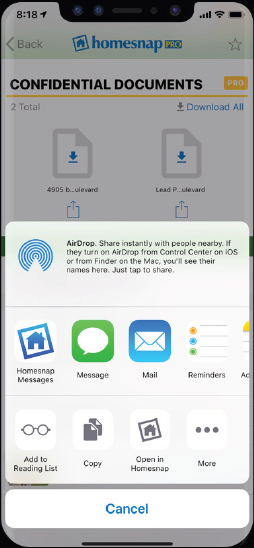
Agent-only Documents in Homesnap Pro Agents can now access private documents for a listing right from Homesnap. View, download, save, and share all attached listing documents How do I see private, agent-only documents:
| ||||||||||||||||||||
|
Erroneous “SqFt Documented field is blank” Emails What is Happening?Over the last morning, you may have received an email stating that your listing has the SqFt Documented field blank even though you actually have a value supplied. We have been in touch with the vendor and are pressing them for a resolve on the issue. We expect an answer from them today. What should I do?If your listing has a value supplied for SqFT Documented, you can ignore the email. If your listing does not have a value entered, please take the steps provided in the email to notify MLS staff of a value to enter on your listing. History of the emailOur vendor, FBS, has an automatic script process to watch for listings that DO NOT have the field SqFT Documented filled out. If found the script will process the next morning and send out an email reminding our policy regarding SqFT Documented. The email states: MLS Policy requires the Sq Ft Documented field to be accurate for all listings. The listing agent must provide proof of taxable square footage from a professional source to the MLS within 15 days from the entry date. You must provide this proof by email in PDF format or by FAX. You cannot update the listing’s Sq Ft Documented yourself. The field is locked after initial entry. You will continue to receive this notification for 15 days or until the field is updated by MLS staff. After 15 days, the listing agent will receive a Data Maintenance Fee for late entry of Sq Ft Documented. This policy applies to all Residential and Res Rental listings. PROOF OF SQ. FT. SOURCE DOCUMENTS: MLS staff must update the Sq. Ft. Documented field for you based upon the source document you provide. Acceptable source documents include county auditor’s record, appraisals, builder statements and floor plans provided by a builder, architect or licensed appraiser. Please submit these documents to MLS so your listing can be updated immediately. You may submit documentation as a PDF by email or FAX. SUBMIT TO:
QUESTIONS? (614) 475-4000 (ask for MLS Corrections)
| ||||||||||||||||||||
|
MLS Committee: Deadline for Candidates Approaching Ever wonder why things happen in the MLS or think about serving on the MLS Committee and wonder how that’s done? The process to serve on this committee is different than any other. First, it’s an elected committee with a limited number of seats determined by a weighted formula based on the MLS’s number of agents, listings, solds and offices. The number of seats available can change each year based on this formula or elected members whose term ends. This number can sometimes also change as a result of members simply changing offices and then perhaps no longer representing the group from which they were elected. You can find more detailed information on this process here. Interested yet? If so please follow these steps to throw your hat in the ring:
Your bio and resume will be presented to the MLS Nominating Committee who are selected at the Annual Business Meeting. The five selected Brokers that serve on the Nominating Committee, as well as the current MLS Committee Chair and the President Elect, meet in November to select candidates. A ballot is created for the annual election where only brokers vote. Members who wish to volunteer their time to serve are very much in demand by the Nominating Committee and always appreciated. If you still have questions, please review the information linked to the main Columbus REALTORS® site. You could also call or E-mail Colin Finan in the MLS Department at 614.475.4000 and cfinan@columbusrealtors.com.
| ||||||||||||||||||||
|
Do You Want to Be on the MLS Committee? Ever wonder why things happen in the MLS or think about serving on the MLS Committee and wonder how that’s done? The process to serve on this committee is different than any other. First, it’s an elected committee with a limited number of seats determined by a weighted formula based on the MLS’s number of agents, listings, solds and offices. The number of seats available can change each year based on this formula or elected members whose term ends. This number can sometimes also change as a result of members simply changing offices and then perhaps no longer representing the group from which they were elected. You can find more detailed information on this process here. Interested yet? If so please follow these steps to throw your hat in the ring:
Your bio and resume will be presented to the MLS Nominating Committee who are selected at the Annual Business Meeting. The five selected Brokers that serve on the Nominating Committee, as well as the current MLS Committee Chair and the President Elect, meet in November to select candidates. A ballot is created for the annual election where only brokers vote. Members who wish to volunteer their time to serve are very much in demand by the Nominating Committee and always appreciated. If you still have questions, please review the information linked to the main Columbus REALTORS® site. You could also call or E-mail Colin Finan in the MLS Department at 614.475.4000 and cfinan@columbusrealtors.com.
| ||||||||||||||||||||
|
MLS Listing Status Guide The MLS Listing Status Guide has been created and approved by the MLS Committee and MLS Board of Directors. These definitions are intended to help all MLS members understand and correctly use MLS statuses when editing or searching listings in MLS. Download the MLS Listing Status Guide here. The status definitions have also been added to the MLS edit screens. For example, when you change a listing to Contingent status, the definitions will appear on the screen to help you determine the correct status for your listing. 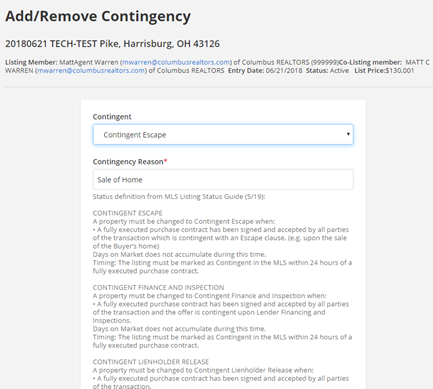 Published 20190627
| ||||||||||||||||||||
|
MLS Listing Lifecycle: New Infographic Shows the Steps from Listing to Sold The MLS department has created a new infographic called “MLS Listing Lifecycle”. This infographic may help you or your client understand the many “twists and turns” that happen to an MLS listing until it reaches “sold” status. Click the link below to download the PDF. Download the MLS Listing Lifecycle infographic Published: 20191003
| ||||||||||||||||||||
|
Accessibility Features: New Worksheet Now Available There is a brand new, expanded Accessibility Features worksheet. If you are selling an accessible home, it is very important to highlight those property features. This will increase the value of the home. It will also help buyers correctly identify properties that meet their specific needs. The new worksheet was designed by a Real Estate agent who specializes in Accessible Homes in the Northwest MLS. Northwest MLS was kind enough to allow Columbus Realtors to adapt their Accessibility form and use it in the Columbus and Central Ohio Regional MLS. Download the new Accessibility Features worksheet. You can also download the new Accessibility Features worksheet from the link that appears on the Add/Edit screen directly below the Accessible Features field. To use this new Accessbility worksheet:
| ||||||||||||||||||||
|
Document Upload: Critical Information About Your Listing It is very important to upload supporting documents to your listings. These documents provide critical information and disclosures about specific property features. Some attached documents are required by MLS policy while others are optional uploads. This does not indicate that the required documents are the only ones that should be uploaded. All documents help to inform potential buyers or their agents of property-specific features. They may even increase the perceived value of the property for sale. The Lead Based Paint and Residential Property Disclosure forms are required at the federal and state level. These critical attachments are not specifically required by MLS Policy as mandatory uploads. However, it is highly recommended that they be uploaded in a timely manner. How do I attach documents to my listing?
Several fields in the MLS, when marked “yes”, require the appropriate document be uploaded and attached to the listing. According to MLS Policy, failure to upload these required documents could result in an MLS fine. Review the official MLS Policy below. 1.02.15 – Required Document Not Attached to Listing These documents include:
The required documents can be found at www.columbusrealtors.com on the MLS Worksheets, Forms, & Contracts page.
| ||||||||||||||||||||
|
MLS Listing Lifecycle: New Infographic Shows the Steps from Listing to Sold The MLS department has created a new infographic called “MLS Listing Lifecycle”. This infographic may help you or your client understand the many “twists and turns” that happen to an MLS listing until it reaches “sold” status. Click the link below to download the PDF. Download the MLS Listing Lifecycle infographic Published: 20191003
|
