| ||||||||||||||||||||
|
Erroneous “SqFt Documented field is blank” Emails What is Happening?Over the last 3 mornings, you may have received an email stating that your listing has the SqFt Documented field blank even though you actually have a value supplied. We have been in touch with the vendor and are pressing them for a resolve on the issue. We expect an answer from them today. What should I do?If your listing has a value supplied for SqFT Documented, you can ignore the email. If your listing does not have a value entered, please take the steps provided in the email to notify MLS staff of a value to enter on your listing. History of the emailOur vendor, FBS, has an automatic script process to watch for listings that DO NOT have the field SqFT Documented filled out. If found the script will process the next morning and send out an email reminding our policy regarding SqFT Documented. The email states: MLS Policy requires the Sq Ft Documented field to be accurate for all listings. The listing agent must provide proof of taxable square footage from a professional source to the MLS within 15 days from the entry date. You must provide this proof by email in PDF format or by FAX. You cannot update the listing’s Sq Ft Documented yourself. The field is locked after initial entry. You will continue to receive this notification for 15 days or until the field is updated by MLS staff. After 15 days, the listing agent will receive a Data Maintenance Fee for late entry of Sq Ft Documented. This policy applies to all Residential and Res Rental listings. PROOF OF SQ. FT. SOURCE DOCUMENTS: MLS staff must update the Sq. Ft. Documented field for you based upon the source document you provide. Acceptable source documents include county auditor’s record, appraisals, builder statements and floor plans provided by a builder, architect or licensed appraiser. Please submit these documents to MLS so your listing can be updated immediately. You may submit documentation as a PDF by email or FAX. SUBMIT TO:
QUESTIONS? (614) 475-4000 (ask for MLS Corrections)
| ||||||||||||||||||||
|
Do not give your MLS password to a vendor, virtual assistant…or anyone else. Providing your MLS password to anyone is a violation of MLS policy. MLS Policy specifically forbids providing your password to any other user. There is NOT an exception for vendors or virtual assistant. Do not provide your password to vendor or virtual assistant provider who will then log in as you to run searches or reports in the MLS. This is subject to a minimum $500 fine. No one is permitted to access the MLS with your login information except you. In addition to vendors, no one else is permitted to login as you either. Other agents, members of your team, assistants and all other users must have their own login. They must login as themselves, then “superuse” (do business) as you. Family members, friends, and clients should never be given your MLS login credentials. Password sharing for any purpose is not permitted. ACTUAL MLS POLICY: 1.05.01 – Data Security/Password Sharing Escalation Policy MLS users who are identified multiple times as “suspected of login sharing” will be subject to an escalation process. Your login name and password shall not be shared, disclosed or knowingly allowed to come into the possession of any other person. This escalation will follow this schedule: 1st Violation: $500 fine, password reset, and user is contacted by telephone
| ||||||||||||||||||||
|
CSS and ShowingTime: What the merger means to MLS CSS has become part of ShowingTime. CSS has informed the MLS that CSS staff and phone numbers will not change. Only the software will be updated. The branding for CSS will move toward ShowingTime over the coming months. All questions about this transition should be directed to the showing service directly. All CSS accounts will move to ShowingTime on November 19, 2019. The showing links within MLS will be updated on November 19th as well. This should prevent any disruption in service. More information here:
| ||||||||||||||||||||
|
CDOM Calculation: “Look Back” Days Changed to 31 PLEASE NOTE: This change affects only the single field, CDOM. The regular display of Days on Market (DOM) and full MLS listing history will not be affected by this change. The Cumulative Days on Market (CDOM) field was recently removed from the default reports in MLS. The MLS Board of Directors has reviewed CDOM and determined that it should be restored to the private, agent-only reports. However, the calculation of CDOM will be significantly modified. This change will affect the total CDOM reported for many MLS listings. The most notable change to CDOM is the number of “look back” days that will determine whether the previous DOM will be accumulated into the CDOM field. CDOM previously “looked back” 365 days prior to list date. This “look back” will be reduced to 31 days prior to list date instead of 365. Every listing will “look back” 31 days prior to list date and accumulate the CDOM from any prior listing found that did not result in Sold status. The total CDOM for all accumulated listings will be displayed in the newest listing’s CDOM field. The CDOM calculations will begin updating immediately. This will require several weeks to complete. The CDOM field will be restored to the reports after the calculation is updated. All CDOM changes should be complete by November 2019. New CDOM calculation rules for 2019: 1) A newly listed property will “look back” 31 days (previously 365 days) prior to list date. 2) If no previous listing for that property is found when looking back 31 days prior to list date, then both DOM and CDOM will start at 1. 3) If a Sold status listing is found when looking back 31 days prior to list date, then both DOM and CDOM will start at 1. 4) If a listing of any other status is found when looking back 31 days prior to list date, then DOM will start at 1 while CDOM will be 1+(previous listing’s CDOM) CDOM Example 1: CDOM Example 2 – Off Market more than 31 days: CDOM Example 3 – Sold listing encountered: Days on Market (DOM) will continue to be displayed on MLS reports. The current calculation of DOM will not be modified. No listing history will be removed from any listing. All changes currently tracked by MLS listing history will continue to be displayed on the history screen in MLS.
| ||||||||||||||||||||
|
Display Change: Compensation, Sub-Agency, Buyer Broker/Tenant Rep
| ||||||||||||||||||||
|
MLS Tip: Business Opportunity Listings Must be Tied to Land The MLS Board of Directors clarified the definition of Business Opportunity listings in the MLS. The listed must be tied to real property in order to be placed in the MLS. The land tied to the Business Opportunity may be leased or for-sale. This affects business opportunities such as food trucks. All businesses, mobile or otherwise, must be tied to land. For example, a truck and equipment without any ties to land cannot be entered into the MLS as a Business Opportunity listing.
| ||||||||||||||||||||
|
MLS Tip: Tenant Occupied Field – Is a Renter Living Here? The Tenant Occupied field is used to indicate that a tenant (renter) is living in the property. The Tenant Occupied field is a required-entry field and must be marked “yes” if there is a tenant living in a property. This is often used in conjunction with the phrase “tenants rights” in the property description and Agent to Agent Remarks. This field should be marked “yes” before you include verbiage such as “tenants rights” in a remarks field. Correct identification of tenant occupied property alerts agents that they cannot access the property without warning because any tenants must be notified in advance of an upcoming showing. Selecting “yes” in this field also makes the property easily searchable for investors who may wish to purchase a property that already has a tenant or want to exclude properties that currently have tenants. The searchable field can be added to a Quick Search: 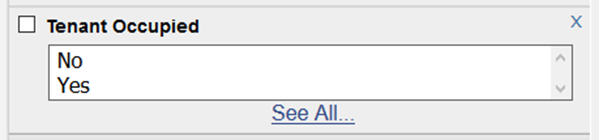 Tenant Occupied field is required on listing entry screen: 
| ||||||||||||||||||||
|
Saved Search in Flexmls: UI Refresh – A New Modernized Look The appearance (User Interface) of the Saved Searches page is being “refreshed”. The new Saved Search page will have the updated, modern look that has already been incorporated in Quick Search and Hot Sheet pages. This UI refresh for the Saved Search page will occur in late July or early August 2019. This updated look and feel for the Saved Search page is part of the ongoing “User Interface (UI) refresh” for all of Flexmls. These changes are being made to make the Flexmls experience more consistent across mobile and desktop patforms.  Quickly add a saved search to your favorites by simply hovering over the search name and click on the grey star that appears. The star will turn yellow indicating it is now a favorite.  The More (three dots) button gives you one-click access to view saved search details, view related subscriptions, rename the saved search, or delete the saved search.  Originally Posted 7/25/19
| ||||||||||||||||||||
|
New Flexmls Login Screen – July 9 The Flexmls process is being standardized across platforms. The new login screen will have a two step process. New two step login process: The The new login process will be consistent whether you are on Flexmls Mobile or Flexmls Web. Your username and password are the same. Only the process to login will change. Login update schedule: Current login screen (one step process): 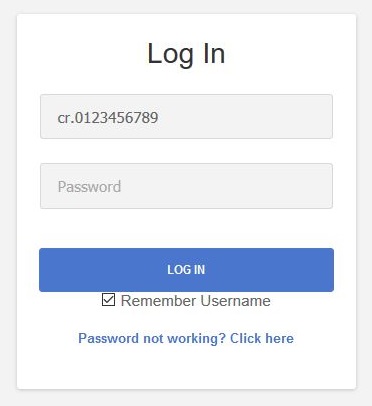 New login screen (2 page process): 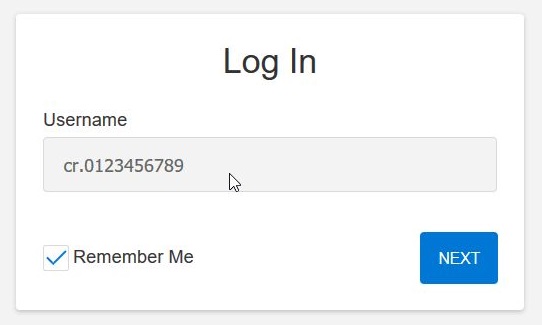 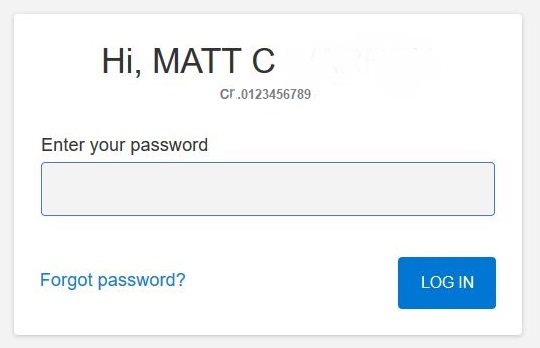 Separating the entry of user names and passwords will improve security and makes it easier to integrate third-party apps into Flexmls. This change is also part of a larger effort to create a more consistent Flexmls experience across all platforms.
| ||||||||||||||||||||
|
MLS Policy Tip: For Sale Signs Cannot Be Visible in Photos Pictures on the MLS cannot be branded in any way. This applies explicitly to your “For Sale” sign. MLS photos are available to the public through MLS email and broker-operated websites. For this reason, For Sale signs are considered very volatile and are subject to an immediate $100 fine. It doesn’t matter if the signage or other branding is on the primary or secondary photos. It is an MLS policy violation and you will receive a fine. Please check your listings photos for possible violations for yard signs or any other branding on your photos. Please review the actual MLS policy below. 1.03.05 – Unallowable Data on Photos and Public Documents No marketing devices of any type (e.g., logos, readable for sale signs, company names, phone numbers, Web sites, Open House Overlay, email addresses including embedded, overlaid or digitally stamped information etc.) shall appear on or with any photos or public documents except for the following:
|
