| ||||||||||||||||||||
|
Policy Violation Manual Updated – December 2018 You can now download the latest revision of the MLS Policy Violation Manual. It has been updated for December 1, 2018. Major changes include: 1.02.01 – Unallowable Data in Property Description Summary of change: URLs (website addresses) are formally added to the list of prohibited items. 1.02.16 – Showing Start Date – Inaccurate Remarks/Description Summary of change: If Showing Start Date is referenced in A2A Remarks or Property Description, it must match the actual Showing Start Date. 1.05.01 – Data Security/Password Sharing Escalation Policy Summary of change: Two similar policies (1.04.06 and 1.05.01) were consolidated into 1.05.01. Fines for Password Sharing were increased. 1.05.02 – MLS Waiver Violation Summary of change: Members found to be accessing the MLS after electing to decline MLS access per the MLS of Choice provision will be subject to immediate fines. To review all changes, please download the MLS Policy Violation Manual.
| ||||||||||||||||||||
|
MLS NRDS Login Conversion has Completed The MLS NRDS login conversion is complete. License number-based logins will no longer allow access to MLS. FULL STORY: There is a change coming to the way you log into the MLS. You may have noticed the message on the FlexMLS Message Board regarding NRDS numbers. The login change is currently scheduled for Tuesday, November 27th 2018. Your password will not be changed on that day, only your login. Need help finding your NRDS number? Instructions at the bottom of this message. Brokers, Agents, and Appraisers currently login using their license number issued by the Ohio Division of Real Estate with a “cr.” prefix (e.g., cr.123456 or cr.2001123456). Assistants currently login with the license number of the agent for whom they work with a suffix (e.g., “a1”). This format is easy to remember but can cause problems if there is a change in your license number. This is common when moving from Agent to Broker or returning from Broker to Agent. Problems can be caused by these license number changes within the MLS system. Members may not be able to see their entire listing history, inventory and other production numbers. The contacts, saved searches and other items tied to the specific license number-based login will not appear if that login changes to the new license number. A new MLS account is created when the state changes a license number. We are moving to a more standardized login scheme (NRDS number) which will not need to be changed when the state changes a license number because of a change in license type. It won’t change even if there is a move to another state! The NRDS number was found to be the best option for the MLS login. NRDS number (pronounced NERDS). This number is used by the National Association of REALTORS® for your unique identification. Your NRDS number is assigned by the first Association that you joined. It is then uploaded to NAR for their records. Your NRDS number will not change throughout your career as a REALTOR®. Current MLS Login: cr.LICENSE# New MLS Login: (beginning November 27, 2018) cr.NRDS# Note: Assistant logins will continue to have a suffix (e.g., “a1”). The license number portion will be replaced by the NRDS number. Administrator logins (i.e., those beginning with “cr.admin…”) will not be affected by this change. Please remember that this change WILL NOT OCCUR until later this year on November 27th, 2018. You will receive several notifications prior to the NRDS login conversion. In addition to this and future emails, it is planned to send printed notices through the US Postal Service and Columbus REALTORS® e-Notes notifications. Each office will be provided a list of NRDS numbers for all Brokers and Agents in their office. Below is information previously provided regarding the upcoming MLS login change. There are several methods to locate your NRDS number. Questions? Please contact the MLS staff or Technical Support at (614) 475-4000 if you would like more information. Thank you for your patience and understanding during this conversion. The information below will help you locate your NRDS number.
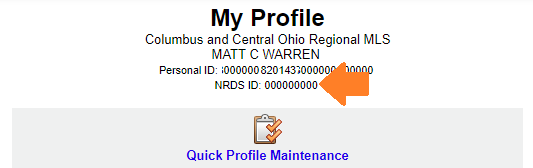
Original Announcement posted June 8, 2018: =-=-=-=-=-=-=-=-=-=-=-=-=-=-=-=-=-=-=-=-=-=-=-=-=-=-=-=- Have you memorized your NRDS number? You will need it soon. Your MLS login is currently your license number preceded by “cr.” For example, an agent whose license number is “123456789” would use “cr.123456789” to login to the MLS. The MLS login for all users will be changing later this year. You will continue to use your current, license-number-based MLS login until you are notified to use the new login. There will be several highly visible announcements prior to the new login requirement later this year. Office administrators: If your login begins with “cr.adminXXXXX”, this change will not affect your login since it does not contain your license number. Assistants: Assistant logins will continue to have a suffix (e.g., “a1”). The license number portion will be replaced by the NRDS number. The new login ID for all MLS users is planned no later than 4th quarter of 2018. It will replace license number with NRDS number. Current format “cr.LICENSENUMBER” will become “cr.NRDSNUMBER”. It is highly recommended that you memorize your NRDS number in advance of the switchover. Find your NRDS ID:
Verify your NRDS number in Flexmls:
View additional information about obtaining your NRDS ID on NAR’s website: https://support.realtor.com/dashboard/getting-started-dashboard/find-nrds/ If your NRDS ID on NAR and MLS do not match, please contact Membership at Columbus REALTORS® at 614-475-4000.
| ||||||||||||||||||||
|
Realist Release scheduled for October 24, 2018 Realist release 1.20 is scheduled for the evening of Wednesday, October 24, 2018 and will be available in the Realist product the following morning. Realist may be intermittently unavailable between 10:00 PM and 2:00 AM Pacific Time during the installation process. This update includes the following: • The large red pins will be removed from Property Map insert at the bottom of the Realist Property Detail report. • Map searches which exceed the 1000 max search limit will display the Exceeds Maximum search results message. • Additional behind-the-scenes security upgrades to protect and safeguard Realist.
| ||||||||||||||||||||
|
ColumbusRealtors.com Website is Down – Not MLS The ColumbusRealtors.com web site is down. This outage does NOT affect MLS functionality. To access the MLS directly: cr.flexmls.com
| ||||||||||||||||||||
|
Do You Want to Be on the MLS Committee? Ever wonder why things happen in the MLS or think about serving on the MLS Committee and wonder how that’s done? The process to serve on this committee is different than any other. First, it’s an elected committee with a limited number of seats determined by a weighted formula based on the MLS’s number of agents, listings, solds and offices. The number of seats available can change each year based on this formula or elected members whose term ends. This number can sometimes also change as a result of members simply changing offices and then perhaps no longer representing the group from which they were elected. You can find more detailed information on this process here. Interested yet? If so please follow these steps to throw your hat in the ring:
Your bio and resume will be presented to the MLS Nominating Committee who are selected at the Annual Business Meeting. The five selected Brokers that serve on the Nominating Committee, as well as the current MLS Committee Chair and the President Elect, meet in November to select candidates. A ballot is created for the annual election where only brokers vote. Members who wish to volunteer their time to serve are very much in demand by the Nominating Committee and always appreciated. If you still have questions, please review the information linked to the main Columbus REALTORS® site. You could also call or E-mail Bryan Dean in the MLS Department at 614.475.4000 and bdean@columbusrealtors.com.
| ||||||||||||||||||||
|
Policy Violation Manual Updated – September 2018 You can now download the latest review of the MLS Policy Violation Manual. The manual has been updated September 1, 2018.
| ||||||||||||||||||||
|
Licking Co. Users: Real Estate Data Accuracy Class in Newark – Sept. 7 – 12:00pm Licking County – Columbus MLS Users: There will be a Real Estate Data Accuracy class offered in Newark at the public library on September 7 specifically for Licking County users of the Columbus MLS. Lunch will be offered at 12pm. The class will begin promptly at 12:30pm and last until 2:30pm in Meeting Room A. CE credit is available and you must register prior to attending the class either online or by telephone. The class will explain current MLS policies and the fines association with non-compliance of these policies. The class can be used to waive a fine that has already been assessed. Credit card is required to register. This will cover CE credit or can be refunded if CE credit is not needed. NOTE: You must attend or cancel prior to September 7th in order to receive a refund. Register Now:Click here to register online or call (614) 475-4000 and ask for class scheduling. LOCATION: DATE/TIME: CLASS OFFERED:
| ||||||||||||||||||||
|
Have you memorized your NRDS number? You will need it soon. Your MLS login is currently your license number preceded by “cr.” For example, an agent whose license number is “123456789” would use “cr.123456789” to login to the MLS. The MLS login for all users will be changing later this year. You will continue to use your current, license-number-based MLS login until you are notified to use the new login. There will be several highly visible announcements prior to the new login requirement later this year. Office administrators: If your login begins with “cr.adminXXXXX”, this change will not affect your login since it does not contain your license number. Assistants: Assistant logins will continue to have a suffix (e.g., “a1”). The license number portion will be replaced by the NRDS number. The new login ID for all MLS users is planned no later than 4th quarter of 2018. It will replace license number with NRDS number. Current format “cr.LICENSENUMBER” will become “cr.NRDSNUMBER”. It is highly recommended that you memorize your NRDS number in advance of the switchover. Find your NRDS ID:
Verify your NRDS number in Flexmls:
View additional information about obtaining your NRDS ID on NAR’s website: https://support.realtor.com/dashboard/getting-started-dashboard/find-nrds/ If your NRDS ID on NAR and MLS do not match, please contact Membership at Columbus REALTORS® at 614-475-4000. – Originally posted on 06/08/2018
| ||||||||||||||||||||
|
MLS Password Sharing Fines to be Increased – September 2018 Providing your MLS password to anyone is a violation of MLS policy. Password sharing for any reason to anyone is not permitted. Beginning in September 2018, the fine for sharing your password will be increased. MLS Policy specifically forbids providing your password to any other user. There is NOT an exception for vendors, family members, assistants or ANYONE ELSE. Do not provide your password to a vendor who will then log in as you to run searches or reports in the MLS. There is now an immediate fine for sharing your password. PLEASE NOTE: Warnings will no longer be issued if password sharing is suspected on a user’s account. No one is permitted to login as you except you. In addition to vendors, no one else is permitted to login as you either. Other agents, members of your team, unlicensed assistants, and all other users must have their own login. They must login as themselves, then “superuse” (do business) as you. Password sharing for any reason to anyone is not permitted. MLS POLICY as updated August 2018: 1.05.01 – Data Security/Password Sharing Escalation Policy$100, $500, $1000, $2000, Suspension
| ||||||||||||||||||||
|
Sub-Type Field is Changing: New Sub-Type Style Field to be Added – September 2018 There are changes coming to the existing Sub-Type field in September 2018. The current Sub-Type field will be split into 2 fields. Due to RESO requirements, the current Sub-Type field must be modified in order to comply with these standards. No selections in the Sub-Type field will be removed from the MLS system. Some will be moved out of Sub-Type and into a new field that will be called Sub-Type Style. Other than these selections now appearing in 2 separate fields instead of one field, the functionality and available selections will not change. PLEASE NOTE: All listings will be data-mapped from their current selections to the corresponding selections in the new field format. It will still be a good idea to verify your listings were correctly data-mapped after the conversion to the new fields. The old Sub-Type field contained these options: The modified Sub-Type field will contain: The new Sub-Type Style field will contain:
|