| ||||||||||||||||||||
|
Realist Downtime: System Maintenance – Sunday, December 10, 1am to 6am – Sunday, December 17, 1am to 4am CoreLogic has scheduled system maintenance this weekend and next, Sunday, December 10, from 1:00am to 6:00am and Sunday, December 17, from 1:00am to 4:00am. During this time, Realist and autopop may be intermittently unavailable.
| ||||||||||||||||||||
|
Client Search on Portal; Classic Portal going away – October 10 Summary:
The newer version of the Client Portal was first made available to Columbus users in 2018. There have been many improvements since then. Many users never upgrade to the new version. One of the features of the new version of the Client Portal is the ability for the client to search for listing and mark listings as favorites. The Search button (magnifying glass on mobile) will appear at the top of the screen on desktop and Android. It will be at the bottom on iOS The MLS committee and MLS Board of Directors believe that allowing the client to search on the MLS Client Portal is very important to stay competitive. They have decided to activate search functionality on the new portal and push the newer version of the portal to everyone. This means that all existing old-style classic portals will be automatically converted to the new version for users who have not already converted to the new version.  
| ||||||||||||||||||||
|
Improved “Auto-Suggest” lookup and map zoom for location fields – September 26 The following fields will be updated on September 26, 2022 with improved “Auto-Suggest” functionality on Quick Search and Add/Edit screens.
You will now be able to type the first few letters of a name, and the field will “auto-suggest” only the matches that contain those letters. Click Enter to select.  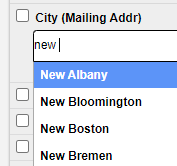 You will still be able to click “See All…” at the bottom of the search box if you would like to view the entire list of available options. 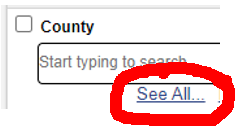 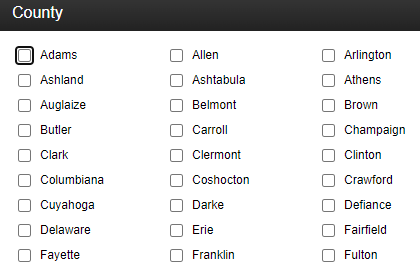 The map will also “jump to” the location of the matched properties. 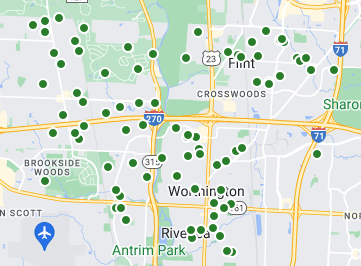
| ||||||||||||||||||||
|
SSO is Coming – How to Login to MLS on August 22nd Columbus REALTORS® will introduce SSO for all members sometime on the evening of Sunday, August 21. YOU CANNOT LOGIN TO SSO BEFORE SUNDAY NIGHT! SUMMARY: Beginning Sunday night (but not before), you will be required to login to the SSO to gain access to all things MLS. How do I login to MLS starting SUNDAY NIGHT?
What about my phone? Is that SSO too? Yes. You will need to go to columbusrealtors.com and sign in to the member portal (SSO) on your phone. Click the button inside the SSO dashboard to go to Flexmls (or other sites). This will work the same as on a computer. What is SSO? Hopefully you’ve already heard of SSO (Single Sign-On). If not, here’s the short version. SSO basically means you log in to a single site. That single login gets you access to multiple apps and sites. This means you have many fewer passwords to remember. You sign in through the SSO, then just click a button in the SSO “dashboard” to launch other software. Office Admins and Unlicensed Assistants All admins and assistants will be required to create a new account. The old format logins “cr.adminXXXX” and “cr.NRDS#a1” accounts will no longer work. New ADMIN accounts will have to be given MLS Access by the Broker. Assistant accounts will have to re-establish Superuser connections to their agent. There will be an FAQ on the member portal login screen with specific instructions. More information will be provided in the coming days Contact MLS Technical Support with questions
| ||||||||||||||||||||
|
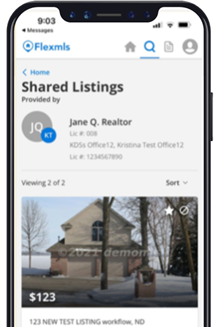
Share Listings via Text Message in Flexmls Did you know that on average, it takes a person about 90 minutes to open an email, but only 90 seconds to open a text? As of June 23, you can share single or multiple listing(s) from Flexmls Desktop to Homebuyers via text message. You can access this new text message feature using the new Share button on the Quick Search and Change Listing page. 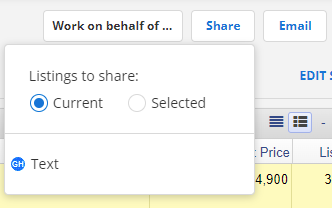 How does it work?
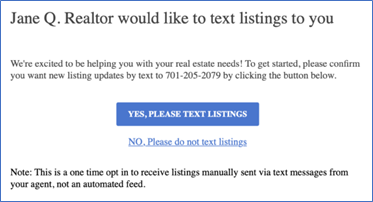
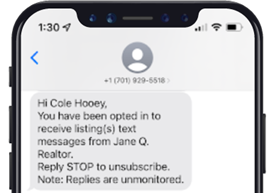
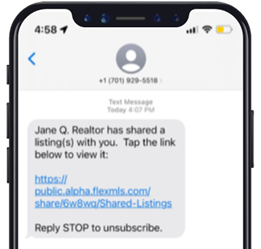
 Click here for more details.
| ||||||||||||||||||||
|
Brokerage Exclusive Form: Old Form, New Name The Office Exclusive form allowed agents to keep a listing exclusive to their brokerage. The Brokerage Exclusive Waiver Form is the same form with a new name. The form is still required when a listing will not be placed on the MLS on the Commencing Date on the Listing Agreement. A number of members thought that the old Office Exclusive form limited the listing to just the listing office, denying them the support of their sister offices. The name change of the Brokerage Exclusive Waiver Form clarifies that the listing can be shared with the entire brokerage, not just a satellite office. Most details of the form remain the same. The Brokerage Exclusive Waiver Form is still required to have an exclusive listing. It must be submitted to the Columbus MLS within 48 hours after the Commencing Date on the Listing Agreement. Exclusive listings cannot be advertised outside the brokerage, as doing so can result in a Clear Cooperation violation. Any exclusive listing marketed outside the brokerage must be entered as Active or Coming Soon in the MLS within 1 business day, or a significant fine for Clear Cooperation violations will be assessed.
| ||||||||||||||||||||
|
Defunct – Delayed Showing Authorization Form The Delayed Showing Authorization form has been discontinued following the replacement of Showing Start Date (SSD) with Coming Soon and the Active on MLS date. Delayed Showing forms are no longer available or required for listings. The rules and regulations for Delayed Showings/Showing Start Date have been consolidated and rolled into Coming Soon, so reference these rules when considering a delayed showing.
| ||||||||||||||||||||
|
Coming Soon? At Time of Entry or Never Coming Soon MUST be selected at the time the listing is created. An Active listing cannot be returned to Coming Soon status. When a new listing is being entered into the MLS, user must choose a status under the Main Fields section. The new listing status can be either Active or Coming Soon. Coming Soon must be selected before the listing is made active. When Coming soon is selected, the user will then be prompted for a List Date and an Active on MLS date. 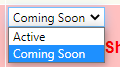 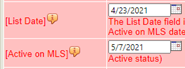 The List Date is the day when your listing goes up on the MLS showing as Coming Soon. This corresponds with the MLS Entry Date field on the listing agreement. While in Coming Soon status, your listing does not accrue Days on Market (DOM). The Active on MLS date is when the MLS switches your listing to the Active status for you, making it fully available for showings. No showings are allowed while your listing is in the Coming Soon status. When it becomes Active, it must be available for showings immediately. Be aware of this when you set your List and Active on MLS dates, as this is the only method to delay showings for properties. Coming Soon and Active on MLS Date have completely replaced the Showing Start Date.  While you can extend Coming Soon up to a maximum of 30 days from List Date, you cannot move the Active on MLS date to an earlier date. You can, however, use the End Coming Soon button, which makes converts the listing to Active status immediately. So, be sure to double-check your dates!
| ||||||||||||||||||||
|
RESOLVED – Subscription Email Bug: Coming Soon Notifications Duplicated EDIT – 4/12/2021: FBS is now reporting this issue as resolved. If you notice the issue still occurring, please contact MLS Tech Support. MLS Technical Support is aware of a bug in the Flexmls system that generates duplicate emails in client email subscriptions when a “Coming Soon” converts to “Active” as a “New Listing”. This has been reported to FBS who manages the back-end of the Flexmls system and they are continuing to work to resolve this ASAP. MLS Technical Support is in contact with the vendor regarding an urgent need for resolution and monitoring of the situation. Updates will be provided as soon as they are available. We thank you for your patience and apologize for the inconvenience.
| ||||||||||||||||||||
|
Columbus Realtors – Phone System Migration Columbus Realtors is currently in the process of migrating to a newer phone system to better serve our members. Until the final tweaks and updates are applied, members may experience dropped calls or other disruptions when calling into Columbus Realtors. We are working to minimize the impact of these disruptions and thank you for your patience.
|
